
Power
Power button
The power button is on the side of the CoreS3 (the top unit), next to the USB-C port. It is marked with a power symbol.
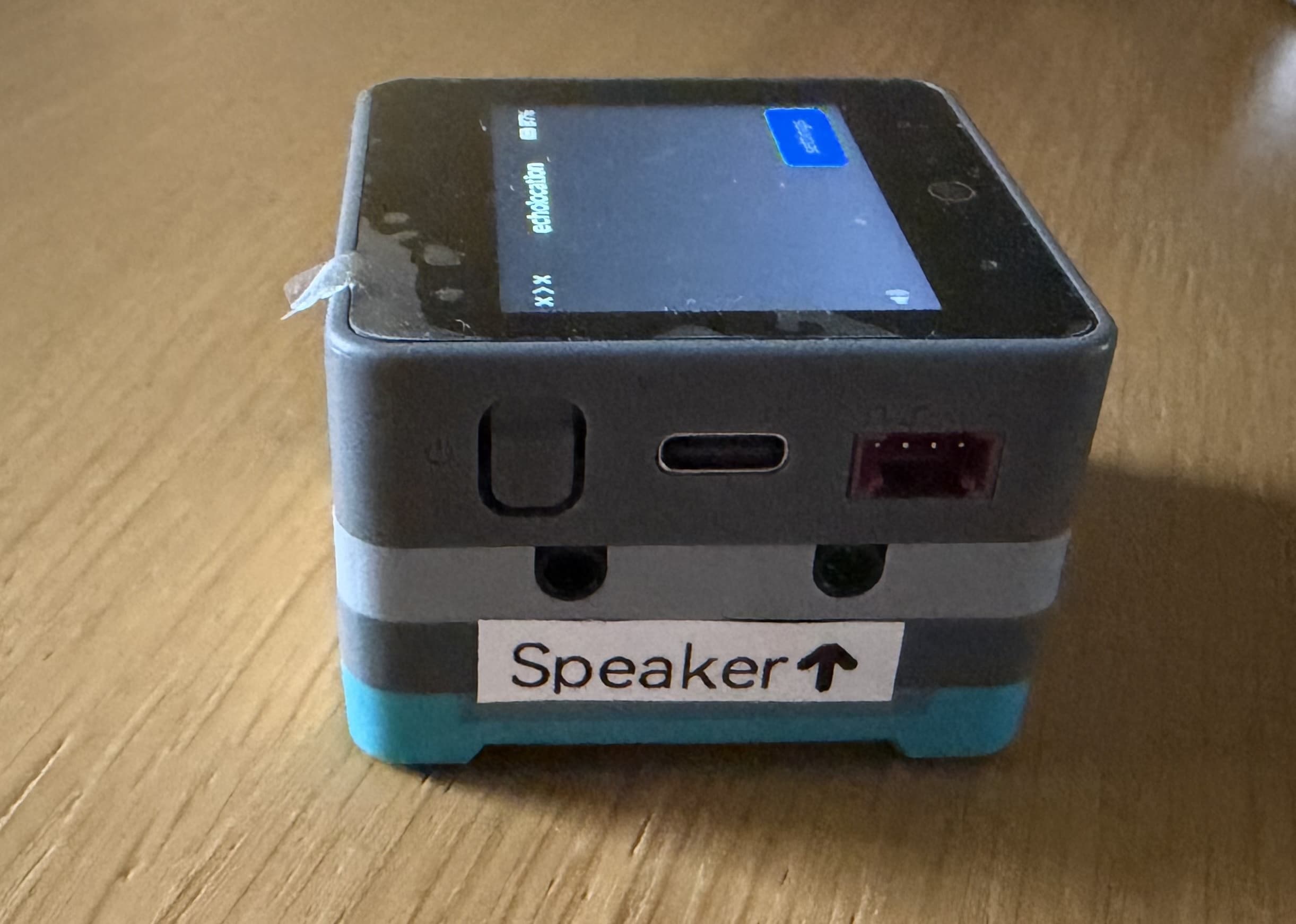
- Press the power button to turn echolocation on. The screen should light up and show the echolocation home screen.
- Press and hold the power button to turn it off when you are finished.
Reset button
The reset button is on the front of the CoreS3, next to the microSD slot. It is a round physical button marked with a circular arrow — not a pinhole.
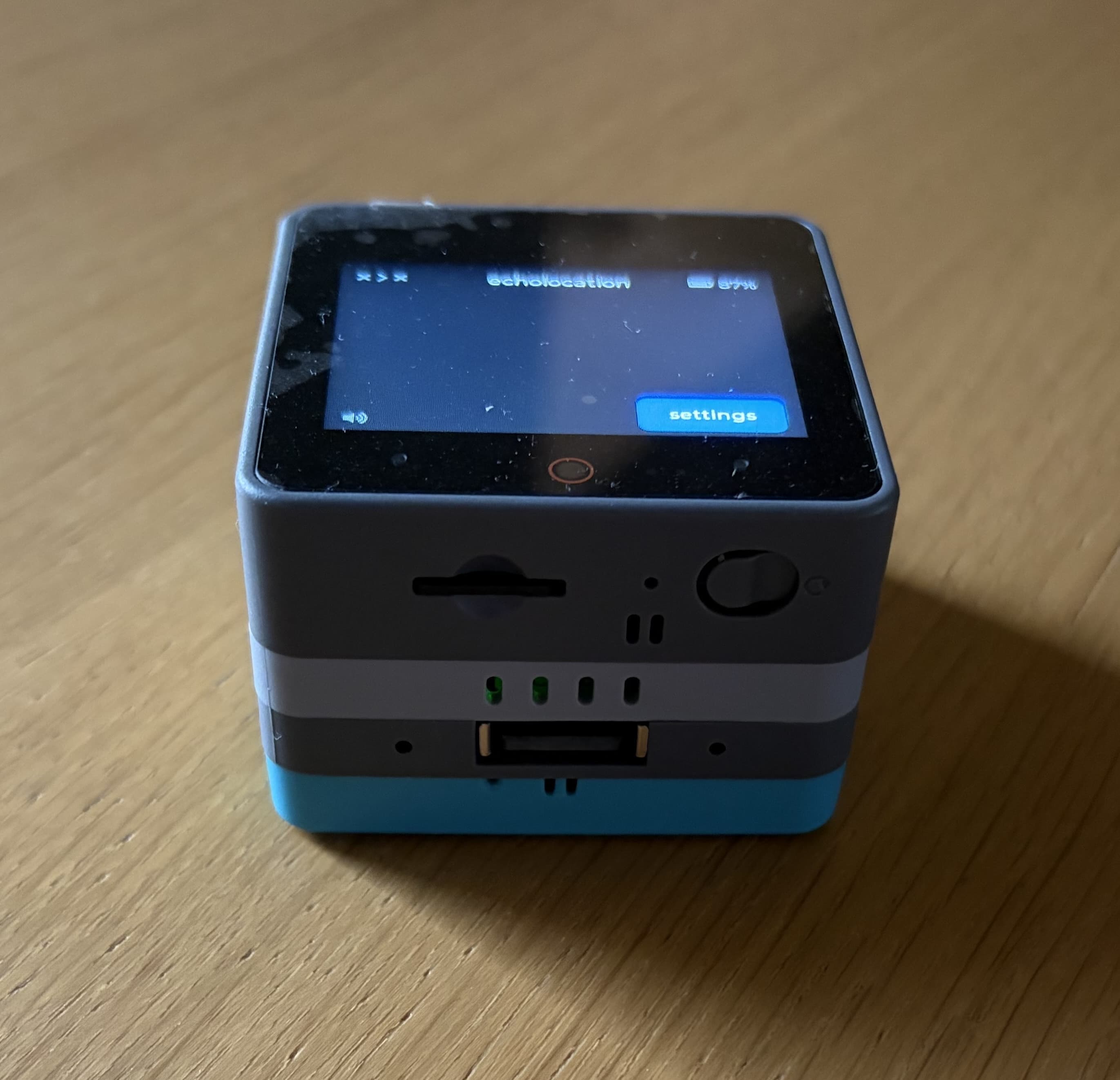
Press reset if the device freezes or will not wake. That restarts echolocation without wiping your settings. It is not a factory reset. For Bluetooth connection problems, see Troubleshooting.
Charging
Charge echolocation through the USB-C port on the CoreS3 — the port next to the power button (shown in the power button photo above). Do not use the USB-A port on the bottom module; that port is for a keyboard.
- Plug a USB-C cable into the CoreS3.
- Connect the other end to a USB power supply or computer.
- Leave it charging until the battery level on the screen is high enough for use.
The battery percentage appears in the top right of the screen while the device is on. You can use echolocation while it is charging.
Avoid leaving the battery on charge for long periods after it is full — see the risk assessment for related guidance.