
Editing key settings
Each key can be changed from a text file on the microSD card inside echolocation. You can stop a key being spoken, send it straight to the computer, change the words on the screen, or play a different sound.
Plug the microSD card into a computer
The card is a microSD card. It is too small for a normal SD slot, and most computers have no slot for it at all. You need two small accessories:
- A microSD to SD card adapter — the plastic shell that makes the microSD the size of a full SD card.
- A USB SD card reader — this plugs into the computer and has a slot for that full-size card.
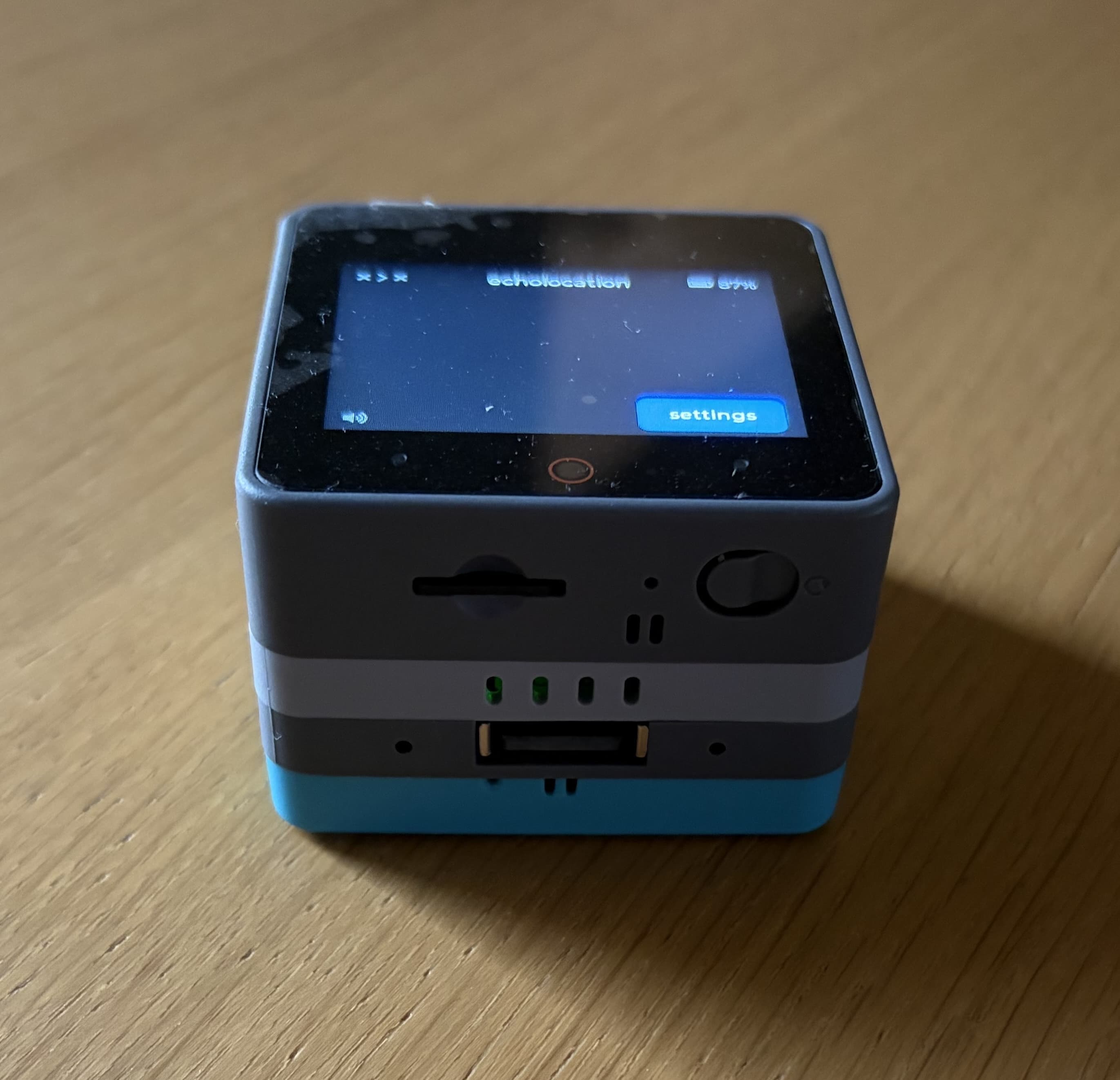
- Turn echolocation off. Press and hold the power button.
- The microSD slot is on the front of the echolocation, next to the round reset button (shown above). Press the card in and let go so the slot pushes it out, then pull the card free.
- Slide the microSD into the adapter.
- Put the SD card into the reader
- Plug the reader into a USB port on the computer. The card appears as a drive.
Edit the settings file
On the card, open the config folder and open keys.txt in a plain text editor.
Its a good idea to make a backup of the file before editing it.
This file is used to configure the behaviour of the keys on the echolocation device.
A line that starts with # is a note and is skipped.
Each line of the configuration file is a single key and its settings. If a key is not listed, it will use the default settings.
After the name of the key, you can add the following settings:
echo=off- the key is silent and nothing is read aloudhold=off— the key is sent as soon as you press it, and released when you let go, like a normal keyboard.text=Next— the screen shows this label instead of the key name. Put quotes around a label that contains a space:text="Delete Letter". Keep the label to 23 characters or fewer.audio=delete_letter.wav— play this file from theaudiofolder instead of the usual sound.
The below example sets the arrow up key and display the text "Next" when it is pressed. It also sets the backspace key to act like a normal keyboard and display the text "Delete Letter" when it is pressed.
arrow_up echo=off hold=off text=Next
backspace hold=off text="Delete Letter" audio=delete_letter.wav
A card supplied with echolocation may already contain lines like these:
backspace hold=off text="Delete Letter" audio=delete_letter.wav
hash hold=off text="Delete Word" audio=delete_word.wav
enter hold=off text="Speak Message" audio=speak_message.wav
right_shift hold=off text="Clear All" audio=clear_all.wav
right_alt hold=off text="Home" audio=home.wav
Change those lines, add new ones, or delete a line to put that key back to the usual behaviour.
Find the name of a key
Key names match the sound files, such as a, space, enter, or arrow_up.
To see the name echolocation expects:
- On the device, open Settings → Key Overrides.
- Turn Debug overrides on.
- Go back to the main screen and press the key.
- The name to write in
keys.txtappears above the key.
Put the card back
- Eject the drive on the computer, then unplug the reader.
- Take the microSD out of the adapter.
- Slide it back into the slot on echolocation the same way it came out, until it sits flush.
- Turn echolocation on.
- Open Settings → Key Overrides. Each saved line is listed there, for example
backspace - hold off, text Delete Letter.