
Connecting a keyboard
echolocation needs a keyboard connected before it can speak keys. You can use USB or Bluetooth. Any standard keyboard should work, including setups like an Apple Magic Keyboard.
USB keyboard
Plug the keyboard into the USB-A port on the bottom of the device - the large rectangular port in the lower module. Do not use the USB-C port, that port is for power and your output device, not for a keyboard.
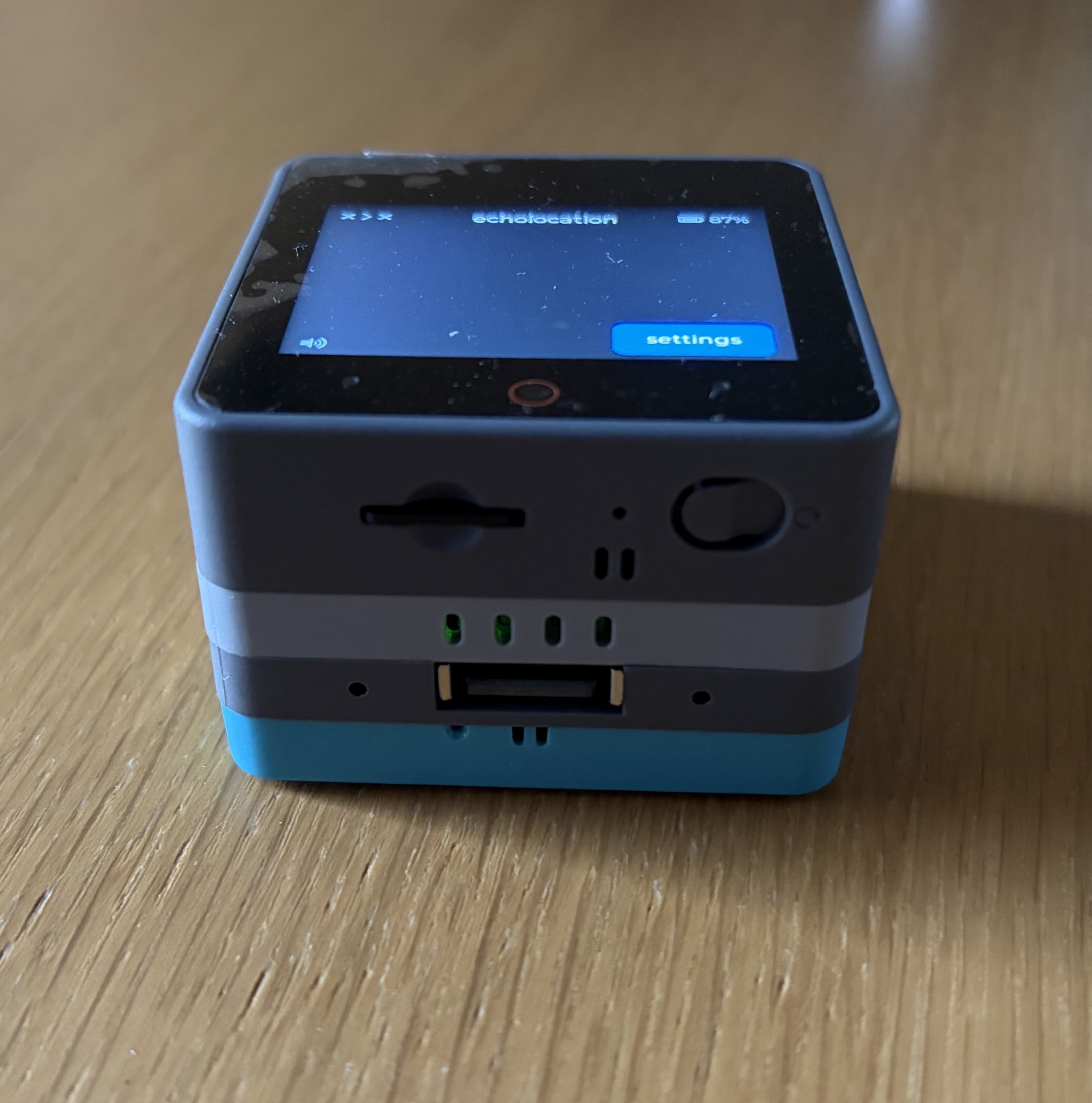
- Plug the keyboard into that USB port
- Wait a moment for the device to recognise the keyboard. You should see a USB icon on the top left of the screen.
- Press a key - you should hear it spoken aloud and see it on the screen.
Bluetooth keyboard
- Open Settings on echolocation, then Bluetooth → Keyboard.
- Put your keyboard into pairing mode.
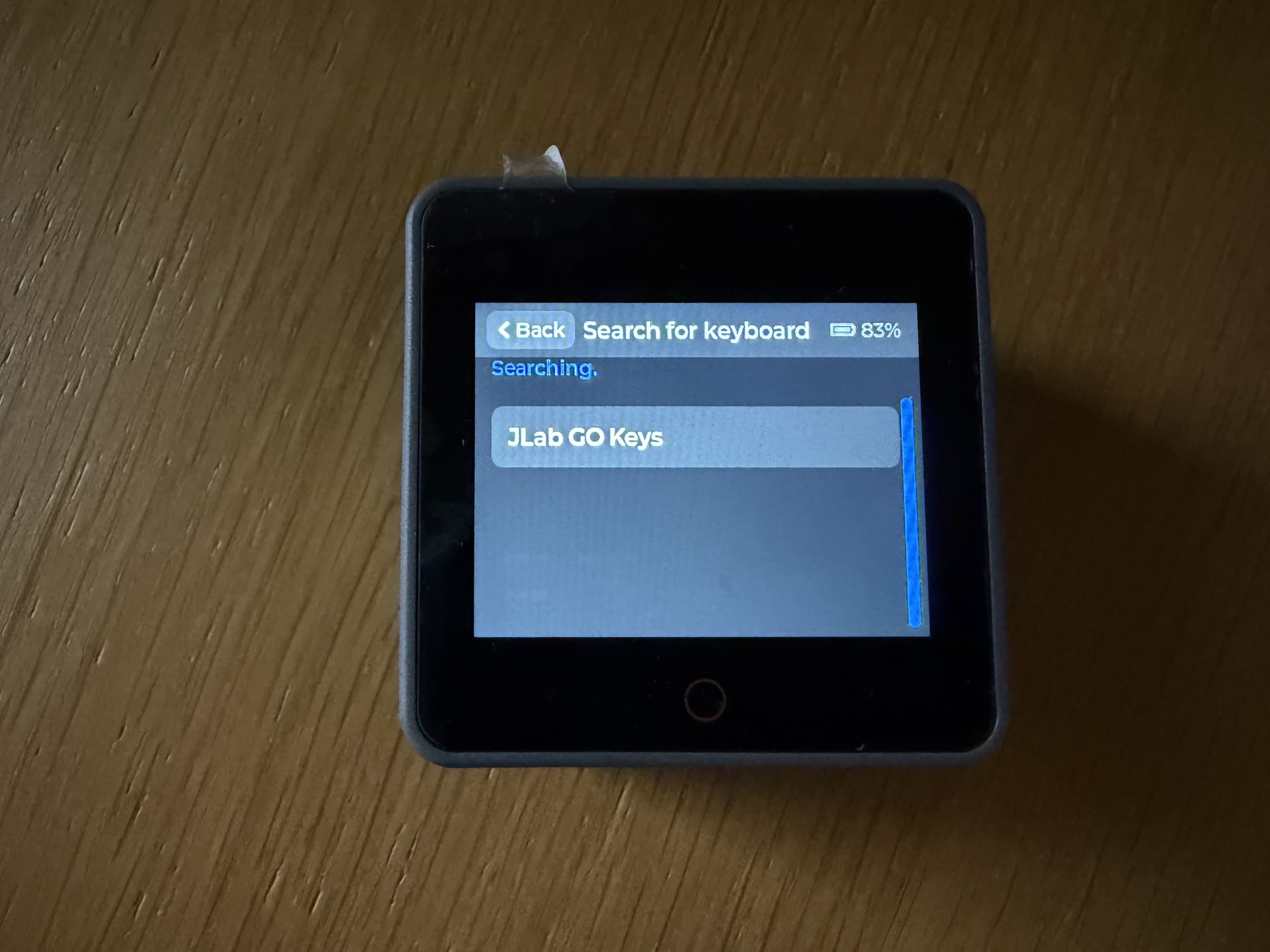
- Tap Search for keyboard. Your keyboard should appear in the list.
- Tap the keyboard to connect it.
While searching, the screen looks like this:
When the keyboard is connected, it is marked as connected on that screen, and a Bluetooth icon appears in the top left of the main screen.
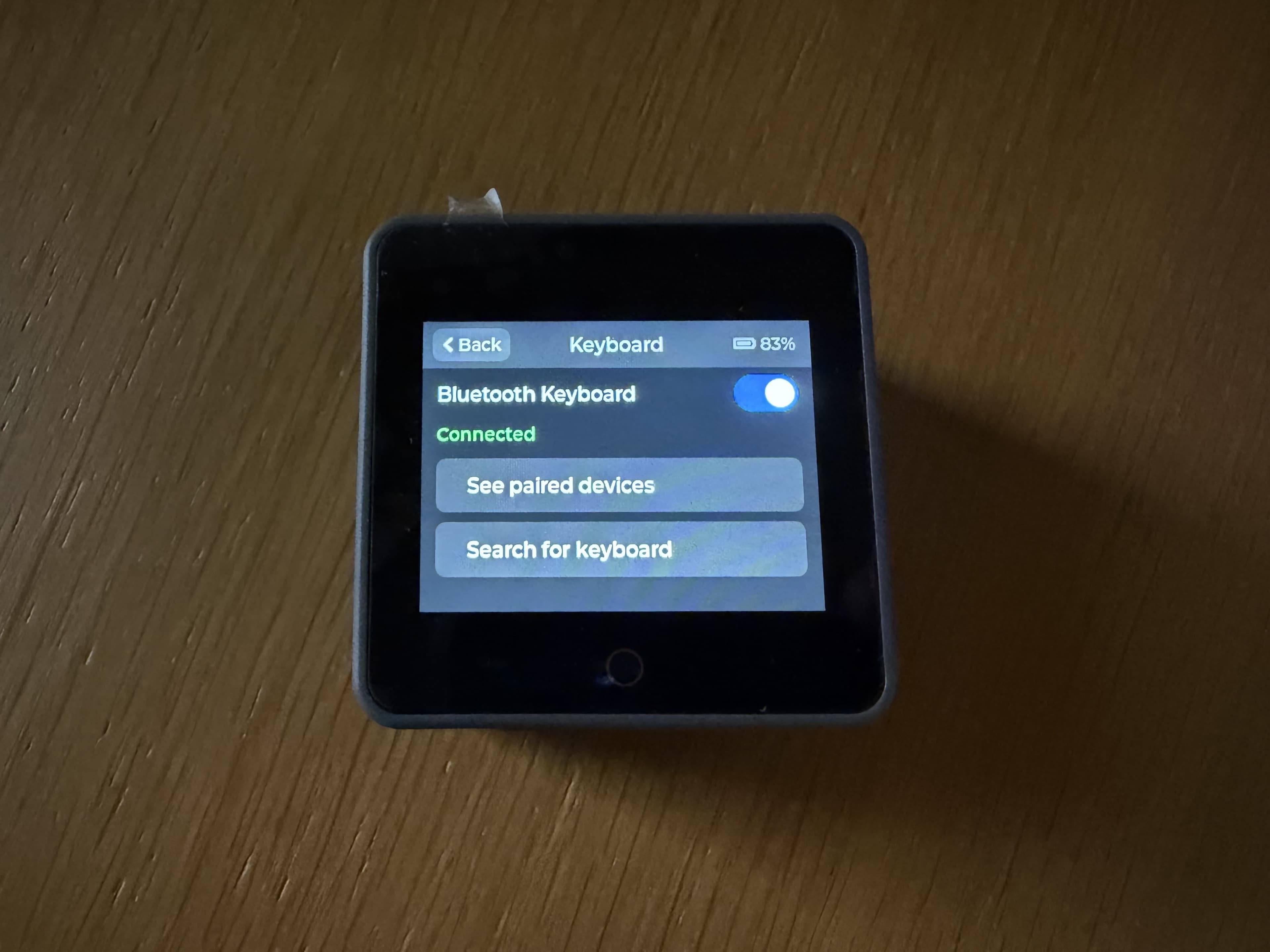
echolocation remembers the paired keyboard. Next time you start the device, it will look for that keyboard automatically — wake the keyboard and it should reconnect on its own.
USB keyboards take priority over Bluetooth. Unplug any USB keyboard if you want to use Bluetooth instead.
To switch to a different Bluetooth keyboard, open the paired devices list, forget the current keyboard, then follow the steps above to pair the new one.